How to run a report (VMS)
To run a report in the voice management suite
-
Choose a set of reports from the menu
-
Select the report you want to run from the tabs

-
Enter the date range for the report. Either use the date selector or type in the date range.
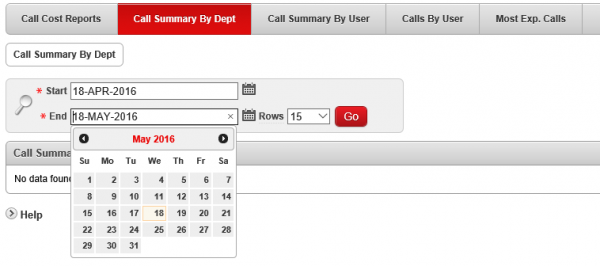
-
Adjust any of the search filters that apply for the report (such as department or user)
-
Click the Go button

Some reports have totals. These will appear in the last row of the report. You may need to scroll to the last page of the report to see this.
To download the report into a spreadsheet, either click the download link, or go to the Action button and choose download.
Some reports, such as the Calls by User report, have additional features under the Action button. For example, selecting the columns to display in the report.
Applies to VMS 7.x